One Windows workstation, multiple WorshipDeck displays
Run multiple WorshipDeck display outputs from one Windows 10 or 11 workstation. Bind each output to a monitor, pair it to a WorshipDeck screen, and enter fullscreen automatically when your service goes live.
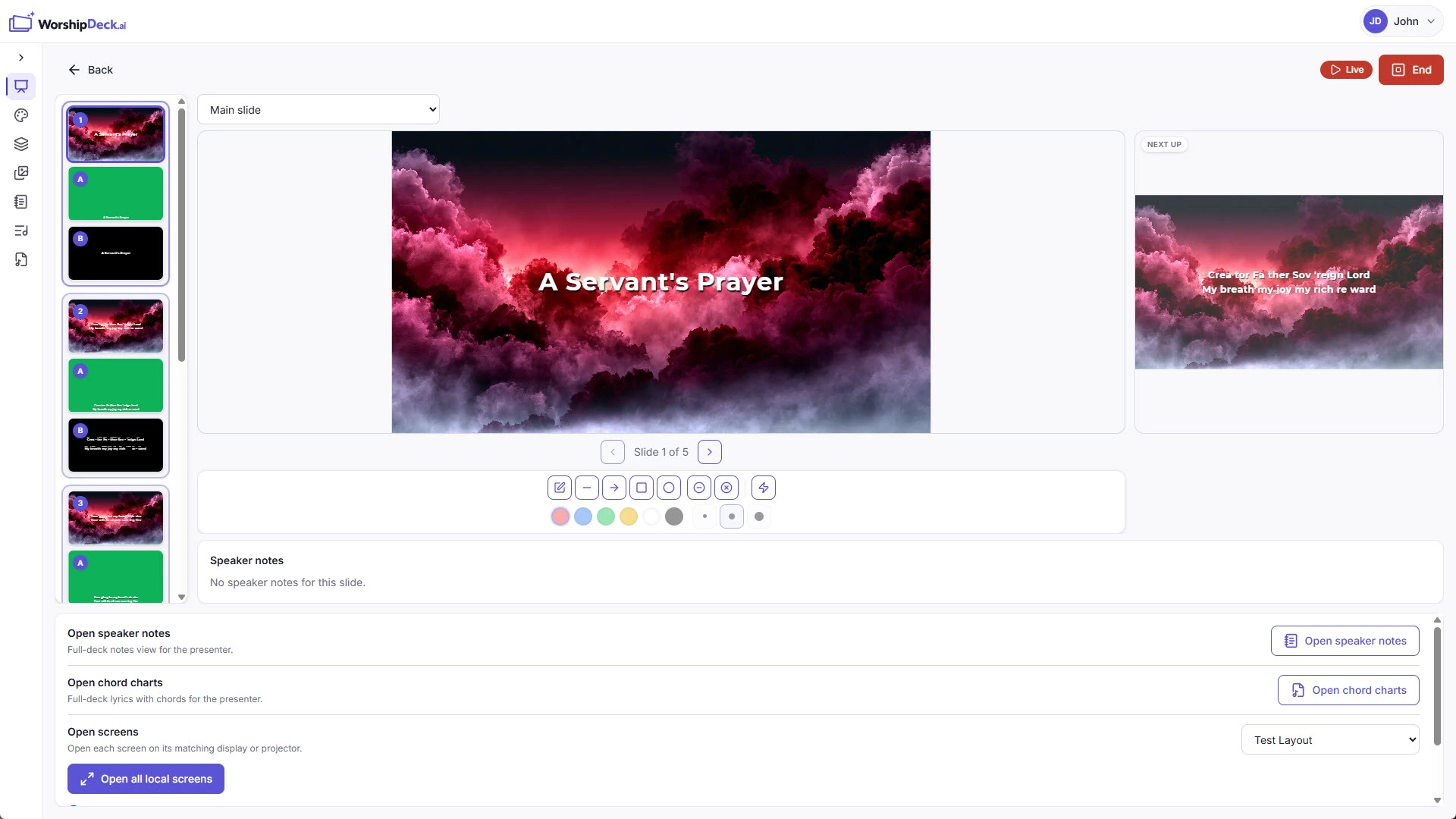
WorshipDeck for Windows is a multi-monitor workstation host for churches that already run projectors, confidence monitors, or room displays from a Windows booth PC.
The operator still prepares and runs the service in the web-based WorshipDeck app. The Windows app handles the display side: it binds paired WorshipDeck outputs to physical monitors and opens them in borderless fullscreen when the operator goes live.
Multiple outputs from one workstation
Open the Displays workspace in WorshipDeck for Windows and add the monitors you want to use. Each display:
- Binds to one connected Windows monitor
- Has its own nickname and six-character pair code
- Pairs to one Remote screen in WorshipDeck
- Can receive a different output through your screen layout
- Opens fullscreen only while its presentation or service is live
That lets one workstation drive a main projector, stage confidence monitor, and lobby feed without treating them as one mirrored desktop.
Pair once, present from the browser
Setup is split between the Windows host and the web app:
- Add a display in WorshipDeck for Windows and copy its pair code.
- In the web app, go to Settings → Screens, create or choose a Remote screen, and select Pair display.
- Enter the code and confirm that the display is online.
- Add that screen to a layout and choose what it should show.
- Run the presentation or service from the browser. The paired Windows output opens on its assigned monitor while live and closes when live ends.
Each output uses the same remote-display protocol as Android TV, so the operator can wake it from present mode without opening another browser popup.
Automatic fullscreen without browser popups
The Windows app opens its output windows in borderless fullscreen on their assigned monitors. It does not need browser popup permission, browser monitor binding, or a click in each output window.
This is different from WorshipDeck's small Automatic fullscreen on Windows policy tool. That optional helper is only for churches using Local browser output windows. Use the full Windows app when you want the workstation to host paired Remote displays; use the policy helper when outputs remain local browser popups.
MVP requirements and boundaries
The MVP supports Windows 10 and Windows 11 on x64 PCs and requires the Microsoft Edge WebView2 runtime. It also requires a reliable connection to WorshipDeck for pairing, live commands, and slide content.
The Windows app is a display host, not a second editor or operator console. It does not provide offline presenting, an on-device presentation library, native slide rendering, or slide control from the workstation. Build and control the service in the browser, then let the Windows host keep the room's outputs in the right places.
See wireless displays for Android TV and browser-output options, or live presentation for the operator workflow.
Related
Flexible displays for every room
Drive projectors, TVs, and monitors from WorshipDeck. Pair Android TV or multi-monitor Windows outputs, open local browser windows, and route the right content to each display with screen layouts.
Live presentation without stopping the room
Run Sunday from a browser operator console. Preview before you go live, advance slides from the keyboard, annotate, and edit presentations or service order without interrupting congregation screens.
One slide, every screen — variants that stay in sync
Content variants in WorshipDeck let one slide drive many screens — English and Spanish, lyrics vs lower third, congregation vs confidence monitor — while the operator still advances a single setlist.
Built for media volunteers
WorshipDeck for media volunteers — one browser operator for the Sunday setlist, live editing, Android TV, local projector windows, and multi-monitor Windows display hosting.